 Space Command
Posts
The Posts tab lists the posts of every Hugo site among your projects, drafts first. It reads the front matter you already write, and changes a post only when you publish or unpublish it. It can also start a new post, and run a site's hugo server, to preview a post before it goes live.
Which sites show
A Hugo site that's a project shows its posts straight away. Space Command reads its config from hugo.toml (or config.toml, YAML, or JSON) at the top, and from config/_default/.
A Hugo site inside another project, such as a theme's example site, waits on a dashed card in that project's site scope, such as "exampleSite is a Hugo site inside fugu".
To show a nested site's posts:
- Choose the project's site from the Posts tab's scope menu.
- Click the dashed card.
- Click Show Posts.
To hide a site's posts:
- Right-click the site's name.
- Choose Hide Posts.
Its dashed card offers Show Posts again.
Microsites as projects
To make a Hugo site inside a project, like a docs/ site, a project of its own, turn on Settings › Hugo Sites › Treat Hugo sites inside a project as projects.
Sites that are only test fixtures stay inside their project, with their dashed cards. The "Never treat these as Hugo sites" list under the switch names their folders. Their files are still read, so their tasks still show; to skip a folder's files, add it to that folder's ignores in Settings › Folders. It shows only while the switch is on. By default it holds:
exampleSite, a theme's example sitetests/,test/,testdata/, andfixtures/themes/*/, any site inside a theme
Each entry names a folder at any depth inside the project.
To add a folder, click + under "Never treat these as Hugo sites". To take one off, select it and click −.
To add entries for one folder only, list them in its .spacecommand.toml:
not_sites = ["demo/"]
To make a skipped site a project after all:
- Open Settings › Advanced › Hidden.
- Find the site, marked "A test site, not a project".
- Click Treat as Project.
Press ⌘Z to take it back, or later choose Stop Treating as Project (see Projects).
All sites and one site
The scope menu offers All sites, then each site, with a nested site indented under its project. With Quiet Mode on, quiet sites fold into Quiet (N) ▸ at the end.
The scope menu's Show submenu picks Drafts and Published, Drafts, or Published. Clicking the Posts tab while it's open steps through the same three. The title follows, as in "w42 · Drafts", and each scope keeps its choice. A site with nothing to show says "No drafts." or "No published posts."
Coming from a project on another tab, Posts opens on that project's site.
| Scope | Shows |
|---|---|
| All sites | Each site's drafts, then its three most recent posts, under Published. More opens the whole site. |
| One site | Every post: drafts, then by year, newest first |
A hollow Sage ring marks a draft, and a filled Oak dot a published post. Each row shows the post's section and date.
| To | Do this |
|---|---|
| Jump to a year's posts, in one site | Click the year in the row of years over the list. |
| Find a post by its title, section, or note | Press ⌘F, then type. |
Draft notes
A draft with a working_on: field in its front matter shows that note in place of its section and date, so you can see where you left it:
---
title: "Proofing in the cold"
draft: true
working_on: "needs the photos from Sunday"
---
To read notes from another field, such as status:
- Choose the site from the scope menu.
- Click the ⓘ in the site's header.
- Enter the field's name under Draft note.
Opening and publishing
| To | Do this |
|---|---|
| See a post's opening paragraph, note, date, and file | Click the post. |
| See the rest of a post's front matter | Click the post, then click its ⓘ. |
| Open a post in your editor | Double-click the post, or click it and click Open. |
| Publish a draft | Click the draft, then click Publish. |
| Unpublish a post | Right-click the post, and choose Unpublish. |
| See a post on your Mac, before it's live | Click the post, then click Preview (see Preview). |
| See a post's live page | Click the post, then click View on Site. |
Publish sets draft: false in the post's front matter, and Unpublish sets draft: true. Press ⌘Z to undo either.
View on Site shows only when Hugo has built the post's page in the site's public/ folder. Its address is the site's baseURL plus the post's path, with slug: replacing the last part and url: the whole path. A draft that's already built shows it too, and a post not built yet doesn't.
An expanded draft shows Open, Preview, and Publish. A published post shows Open, Preview, and View on Site, once its page is built.
The right-click menu also has Open, Preview, Open With, and Show in Finder.
An expanded post's ⓘ, left of Open, shows Post Info: the post's file (click it to show it in the Finder), then the rest of its front matter, such as tags, categories, and slug, as labelled values.
A site's header
In one site's scope, the card's header is the site's own control row.
| To | Do this |
|---|---|
Open the live site, from its baseURL |
Click the site's name. |
| Hide the site's posts | Right-click the site's name, and choose Hide Posts. |
| Start a new post | Click + (see New post). |
| See Site Info | Click the ⓘ. |
| Start or stop the site's preview server | Click ▶ or ■ at the header's right (see Preview). |
Right-clicking the site's name, on its card or in the panel's header, opens the same menu: Open in your editor, Open With, Show in Finder, and Open the live site by its host, such as Open example.com, then Hide Posts.
Site Info shows the site's folder, its config file (click it to open it), its content folder, its live address, how many posts Recent shows in All sites, the Draft note field, and how new posts are made.
New post
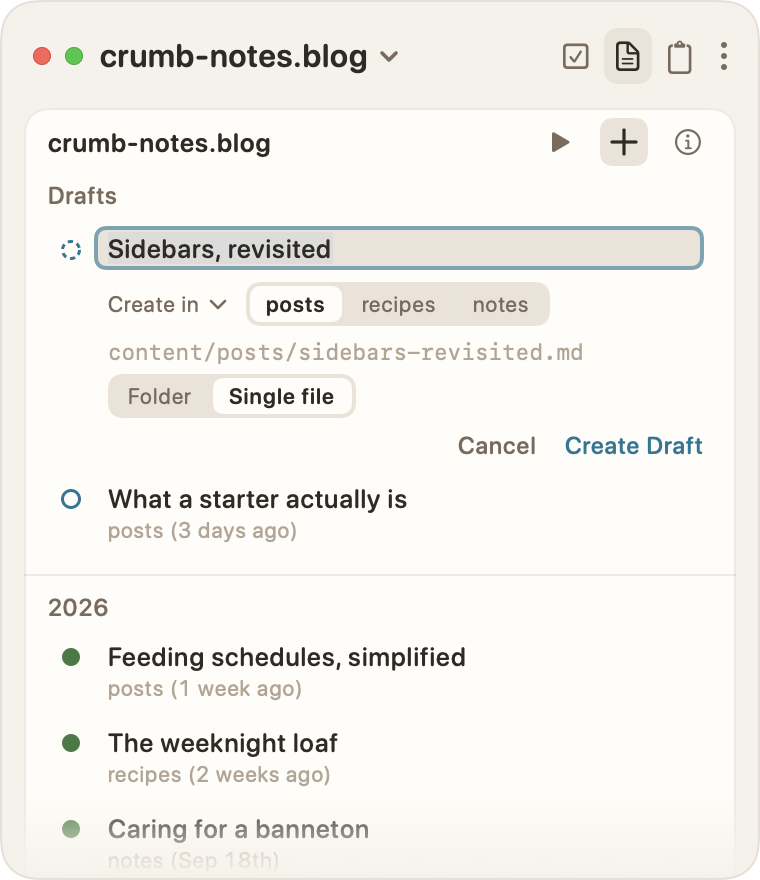
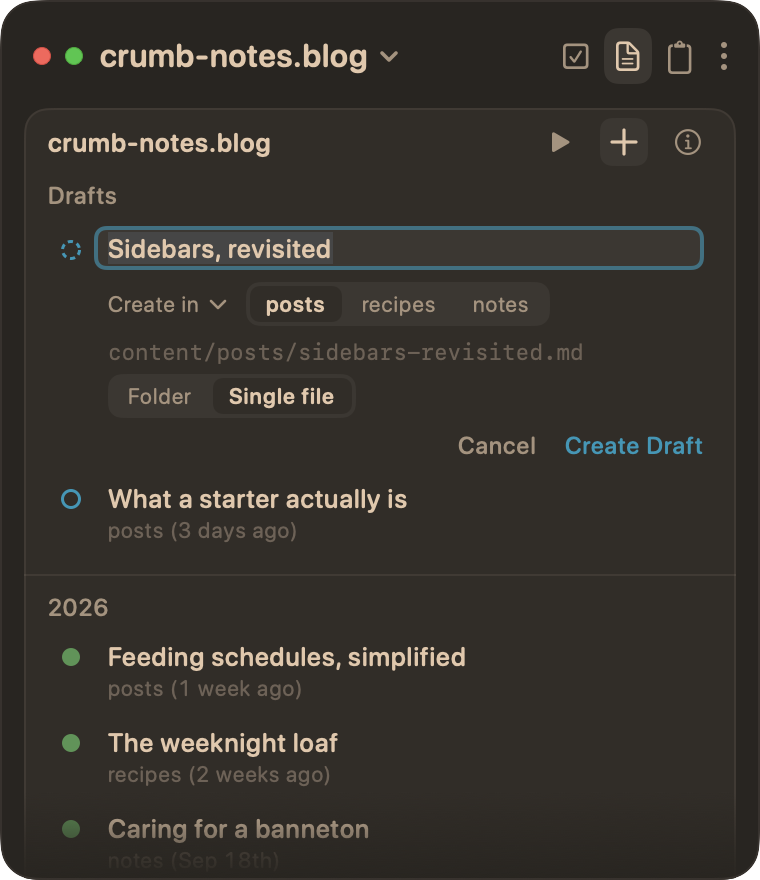
To start a post:
- Click + on the site's header, right of ▶.
- Type its title.
- Pick a section under Create in.
- Press Return, or click Create Draft.
The row opens at the top of Drafts, even when the site has none yet. Press Esc, or click Cancel, to close it.
Create in lists the site's sections: the content folders that hold posts, nested ones too, with the newest post's section first. A site with no posts offers posts.
Click Create in to see the file it will make, and a Folder · Single file switch:
| Choice | Makes |
|---|---|
| Folder | content/<section>/<slug>/index.md, a page bundle, with room for its images |
| Single file | content/<section>/<slug>.md |
The switch starts on the section's habit: folders when most of its posts are bundles. To change that for the whole site, click the ⓘ in the site's header and choose under New posts: Match each section (the default; its note names each section's habit), Folders, or Single files.
The file's name comes from the title, lowercased, with accents dropped, apostrophes left out, and hyphens between words. "Crème Brûlée, Again!" becomes creme-brulee-again. If that file already exists, its path shows in Terracotta, and Create Draft waits until you change the title.
What goes in it
With hugo installed, Space Command runs hugo new content, so the site's archetypes fill in as Hugo fills them. It then sets the title as you typed it, and adds draft: true if the archetype left it out.
If hugo new fails, the row ends as a failed Preview start does: hugo's error, then Posts Help when the site has an error (a broken archetype, config, or template) or Preview Settings… when hugo itself couldn't run, then Show Log. Its output goes to the site's log.
Without hugo, Space Command writes the front matter itself, in the site's YAML or TOML: the title, the date, and draft: true, plus the archetype's fields and body lines that hold no {{ }}.
Either way, the new draft opens expanded at the top of Drafts, and in your editor. Press ⌘Z to remove it, and a bundle's folder, while you haven't changed it.
Preview
Preview runs the site's own hugo server, so you can read a post as it will look, drafts included, before you publish it.
ⓘ." src="shot:preview" title="A site's preview server, running on port 1313." />
The deck at the right of each site's header, left of +, runs it:
- ▶ starts the server.
- While it starts, the dot beside "starting" pulses quickly, and ■ cancels.
- Once it's running,
● :1313shows in Sage, with a slow pulse (a still dot with Show fewer animations on), and ■ stops it.
The port comes from hugo itself, so it may not be 1313: with another server running, a second site gets the next free port.
| To | Do this |
|---|---|
| Open the local site | Click the port. The address keeps baseURL's path. |
| Preview one post | Click the post, then click Preview, or right-click it and choose Preview. |
| See the server's output | Right-click the port, and choose Show Log. |
Preview starts the server if it isn't running, then opens the post. The port's right-click menu also has Open followed by the local address.
Servers stop when you quit Space Command, when you choose Hide Posts on the site, and when the site's folder is gone. A server you started yourself, in Terminal, isn't seen, so ▶ starts one of its own.
The command
hugo runs in the site's folder, found on your login shell's PATH (fish, zsh, or bash), so it works even when Space Command starts from the Dock.
To change the command, such as to add a flag, edit Settings › Hugo Sites › Preview. It's hugo server -D by default (-D shows drafts). Clear the field to put the default back.
The log
Each start, and each new post made with hugo, writes hugo's output to ~/Library/Logs/Space Command/Preview <site>.log, replacing the last one. Show Log opens it in Console.
When it doesn't start
A failed start shows hugo's error line under the header, then a link that fits, then Show Log:
| The trouble | The link |
|---|---|
hugo isn't installed |
How to install hugo (see Installing hugo) |
| The command or a flag is wrong | Preview Settings…, to fix the command |
| The site itself has an error, such as a broken config or template | Posts Help, this page; the log has the detail |
The next ▶ clears the message.
Installing hugo
Preview needs Hugo. Until it's found, the site's card says so.
To install it with Homebrew:
- Open Terminal.
- Run
brew install hugo. - Click ▶ on the site's header.
Without Homebrew, see Hugo's own installation guide. Space Command finds hugo anywhere on your login shell's PATH.