 Space Command
Clipboard
Text copied to the clipboard shows here, on any tab, while the panel is open. The Clipboard tab doesn't need to be the one in front, but the panel must be showing. Copies made while the panel is hidden aren't listed, except the last one, which shows when you open the panel.
To keep every copy, with the panel open or closed:
- Allow access (see below).
- Open Settings › Clipboard.
- Turn on Keep copies while the panel is closed.
Without Allow, nothing is watched while the panel is closed, since macOS would ask on every copy.
Today shows your latest copy in one line under the focus card. Click it to open that copy on the Clipboard tab. Turn it off with Settings › Clipboard › Latest copy in Today. Quiet Mode hides it too.
The Clipboard tab keeps your last few copies and suggests a clean-up for each. Text from a terminal comes out reflowed, rich text comes out as Markdown, and any copy can become a task or a saved reference.
Copies are kept in memory only, and gone when you quit, unless you save one as a reference.
Allowing access
macOS asks every time an app reads the clipboard, until you allow it. Space Command only appears in macOS's list after the first time it asks, so start with a copy.
To allow access:
- Copy some text.
- Click the copy in the Clipboard tab.
- Answer macOS's alert.
- Click Open System Settings on the card that appears.
- In Privacy & Security › Paste from Other Apps, set Space Command to Allow.
The tab notices the change right away, with no relaunch. Until you allow it, each copy is read only when you click it. Not Now puts the card away.
If Space Command is set to Deny, the tab can't list what you copy, and a card says so. Click Open System Settings on it to change the setting.
Passwords and other concealed copies are never read.
Cleaning up a copy
Each copy shows its first lines, its age, and, in Sage, what Space Command noticed, such as "Shell prompts" or "Hard-wrapped Markdown". Plain-text copies show in a fixed-width font, so their indents and wraps line up.
To clean up a copy:
- Click a copy to open it.
- Click clean-ups to turn them on or off. The suggested one is already on.
- Check the preview. Click it to see the original. A long copy scrolls in its own box.
- Click Copy, or press ⌘C.
Nothing changes until you copy, which puts plain text, HTML, and rich text on the clipboard at once, so the copy pastes well anywhere.
| Clean-up | Does |
|---|---|
| Reflow | Joins hard-wrapped lines, starts each paragraph at the margin, and puts a blank line between paragraphs, headings, lists, quotes, and code blocks. A diagram or other line art is left alone. A list wrapped by a terminal keeps its items, nesting, and order. A terminal copy with bold in it, such as Claude Code's, reflows too |
| Unindent | Takes out indents, in three modes, and tidies the ends (see below) |
| Strip prompts | Drops $ from the start of each line |
| Markdown | Turns copied rich text into Markdown, links kept |
| Plain | Takes Markdown's marks out |
| Smart Quotes | Curly quotes, dashes, arrows, and ellipses, outside code |
| Verbatim | Keeps every character, as a fenced code block |
| Slack | Slack's format: bold headings, *bold*, _italic_ |
| Notion | Makes Obsidian's links, embeds, and callouts plain, and removes Space Command's tags |
| Clean Link | Takes tracking parameters, such as utm_source or fbclid, out of a copied link (see Copied links) |
Markdown, Plain, and Slack are either-or. Verbatim keeps every space, so it can't be combined with Reflow, Plain, or Smart Quotes.
The Format chip
When a copy offers more than one of Markdown, Plain, and Slack, they share one Format chip, so a copy's chips fit on one line.
While no format is on, the chip shows the first one offered (Markdown, when it is). Click it to turn that format on.
While a format is on, the chip shows its name with ▾. Click it to open its menu:
- The formats, with the one in use checked.
- Markdown Style, while Markdown is on (see below).
- Off, to turn the format off.
Unindent
Unindent is offered when a copy has an indent, blank lines at either end, or trailing spaces to take out. While it's on, the chip names its mode. Click the chip to step through the modes, then off:
| Mode | Takes out |
|---|---|
| Unindent | The indent every line shares |
| Unindent ↳ | The indent lines 2 onward share, keeping the first line where it is, for a copy started mid-line |
| Flush | Every indent, so every line starts at the margin, and nested lists go flat |
Every mode also tidies the ends: it takes out blank lines before the first line and after the last, and the spaces at the end of each line. When that's all a copy needs, Space Command notices "Spaces at the ends". Verbatim still keeps every character.
The first two modes keep a list's nesting. When the first line sits at the margin and the rest are indented, as in many terminal copies, Unindent ↳ is suggested, unless the copy starts with a list item or heading.
A copy with anything to take out opens with Unindent on. To change that, open Settings › Clipboard, click the ▸ beside Unindent, and turn off On by default. Unindent is then on only for a copy started mid-line.
Starts at, under the same ▸, picks the mode it opens in: Flush (the default, for messy terminal and editor copies), Unindent, or Unindent ↳. With Unindent picked, a copy started mid-line still starts at Unindent ↳. Services and hotkeys use the same setting.
Markdown styles
To change how Markdown is written:
- Turn on Markdown.
- Click the chip again to open its menu.
- Under Markdown Style, choose a style. The one in use is checked.
| Style | Writes |
|---|---|
| Standard | ## Heading, - bullets, * emphasis, inline links |
| Bold headings | A **Heading** line |
| Stars | * bullets |
| Plain links | Plain heading lines, _ emphasis, and bare URLs |
The style is remembered, and every clean-up that writes Markdown uses it.
A short line that's wholly bold, standing on its own, becomes a heading: one level below the copy's highest # heading, or ##. Bold headings leaves it bold.
To choose which styles the menu lists, open Settings › Clipboard, click the ▸ beside Markdown, and check them. At least one stays on.
Choosing the chips
Every clean-up's chip shows, by default. To hide one:
- Open Settings › Clipboard.
- Uncheck the clean-up. Point at its name to see what it does.
Its Services menu item and hotkey stay as set.
Copied links
A copy that's a single link (http, https, or mailto) shows the link and its host. When you open it, Open is the main button, with Copy beside it. A copy that's a single path, or a file:// URL, to something on your Mac gets Open too, in the editor it would use from the Tasks tab. Nothing opens until you click.
When a link carries tracking parameters, such as utm_source, fbclid, or gclid, Space Command notices "Link with tracking" and turns on Clean Link. Open and Copy then use the cleaned link. Turn the chip off to use the link as copied.
Settings › Clipboard has Clean Link's switch and a hotkey slot. Click the ▸ beside it to edit the list of parameters it takes out. It's in the Services menu too, as Space Command: Clean Link.
Links in an opened copy's preview show in Sage. Click one to open it in your browser. A click elsewhere on the preview still shows the original.
Turning a copy into a task
To turn a copy into a task:
- Click a copy to open it.
- Click Add as Item.
- Edit the line.
- Pick #todo or #idea.
- To use another file, click the file's name and pick one.
- Click Add Task, or Add Idea.
The file you used last is picked next time.
Saving a reference
Save as Reference keeps a copy in a project's REFERENCE.md, for text you reach for often: links, snippets, a list of commands.
To save a reference:
- Click a copy to open it.
- Click Save as Reference.
- In All copies, choose a project.
- Edit the title. It starts as the copy's first line.
- Click Save.
If the project has no REFERENCE.md, you're asked before it's made. Each reference is a ## section, with its clean-ups applied. Press ⌘Z to undo the save.
A project's scope lists its references under Saved.
| To | Do this |
|---|---|
| Copy a reference again | Click it under Saved. |
Open REFERENCE.md |
Click the → beside Saved. |
Settings › Clipboard › Save references to names a different file. It's never read for tasks.
Answering questions
A Claude session, or anything else, can ask you numbered questions. Copy the list, and you can answer it on the Clipboard tab, then paste your answers back.
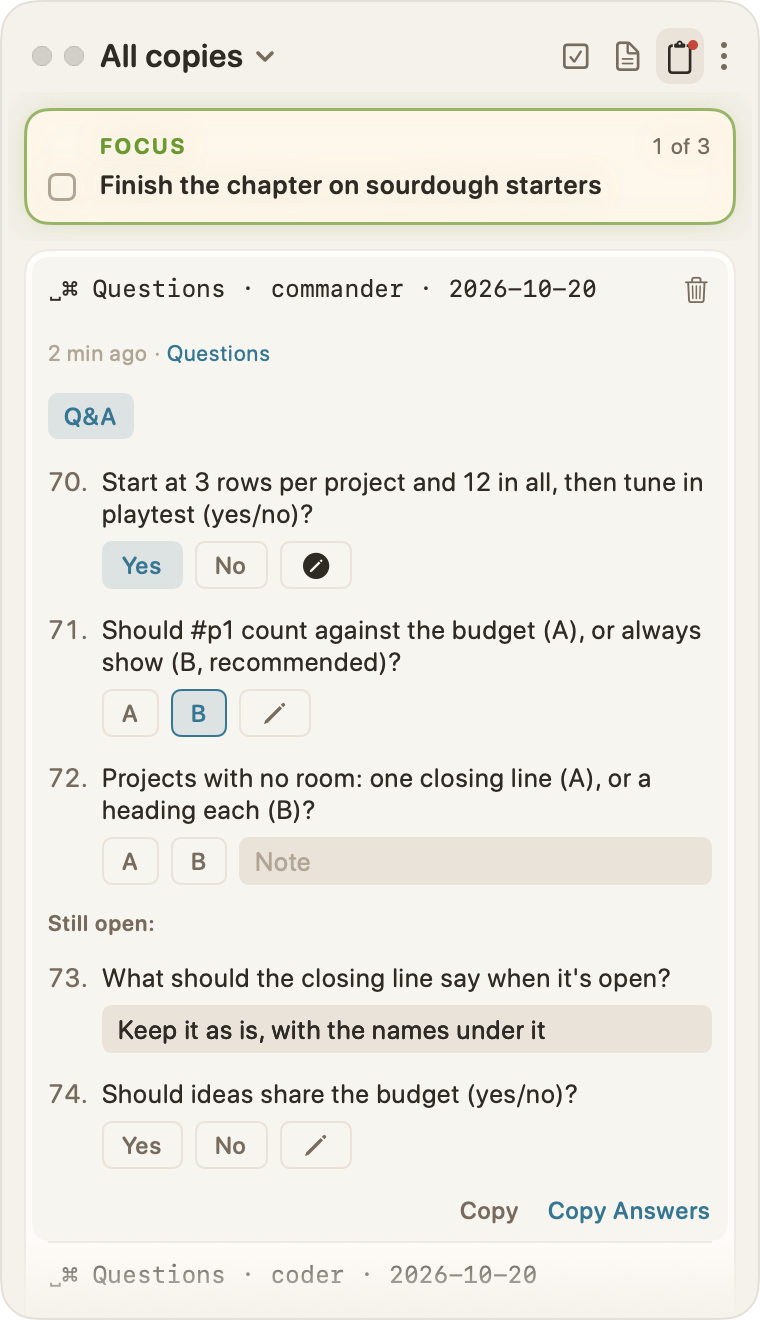
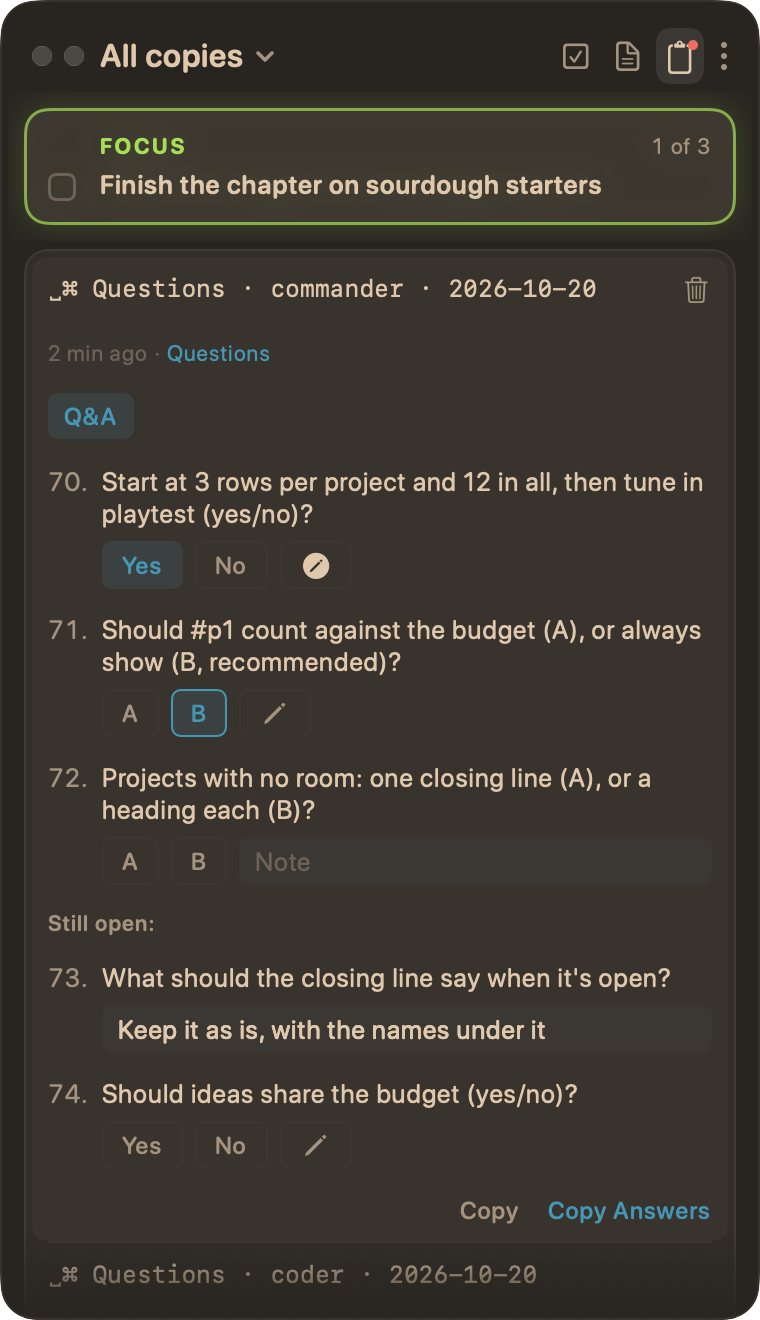
A copy counts as a question list when either is true:
- Its first line starts with Questions, the marker a session can put at the top.
- At least two of its numbered lines hold a question mark.
Such a copy is noticed as "Questions" and offers the Q&A chip. With the marker, Q&A is already on, and the copy gets a Terracotta dot beside its age until you open it. The Clipboard tab's icon carries the dot too, while any such copy is unopened. Quiet Mode hides both.
A list copied from a terminal reads too: the indent its lines share is taken off, and a wrapped line joins the question above it. That holds when your selection starts partway through a paragraph, with its first line at the margin and the rest indented.
Q&A changes nothing in the copy. It shows each question with its number, and chips for a quick answer where the question's shape is clear:
| The question | Chips |
|---|---|
| Lettered options, "(A) … or (B)?" | A · B, plus C and D when named |
| "yes/no", or asked with Is, Should, Can, Will and the like | Yes · No |
| A short choice at the end, "tabs or spaces?" | One chip per option, in its own words |
A recommended option ("(B, recommended)", "I recommend A") starts picked, with a Sage outline, so you can see it was the suggestion. Pick another, or click it to clear it. A question with no clear shape gets an answer field instead.
To answer:
- Click a chip for each question you can answer quickly.
- To add words, click the pencil button at the end of the chips. It opens into a note field. Press Return or click elsewhere to close it. The pencil fills in once it holds a note.
- Click Copy Answers, or press ⌘C.
- Paste into the session.
Copy Answers writes one line per answered question, in the list's own numbering, such as 3. Yes or 4. B, but keep the hint, and skips the ones you left. It isn't listed as a new copy. Answers stay with their copy until you remove it.
Copies by project
The scope menu offers All copies, then each project, with a nested project indented under its parent. With Quiet Mode on, quiet projects fold into Quiet (N) ▸ at the end. A copy belongs to the project in view when it's made, so a project's scope shows the copies you made while working on it. Coming from a project on another tab, Clipboard opens on that project's copies.
Clearing copies
To empty the list in view:
- Click the ⋮ at the end of the panel's header.
- Choose Clear Clipboard History.
In a project's scope, that clears the project's copies. In All copies, it clears every copy.
To remove one copy, point at it and click the trash at its top right, or right-click it and choose Remove. It goes at once, with no question.
The system clipboard keeps what you copied, but after a clear, opening the panel again doesn't list it until you copy something new. Press ⌘Z to bring back the last clear or removal, one step at a time, until the panel is hidden.
From any app
To clean up selected text in any app:
- Select the text.
- Choose the app's menu › Services.
- Choose a clean-up, such as Space Command: Reflow.
The selected text changes in place. Space Command: Unindent uses the mode Unindent's Starts at picks, in Settings › Clipboard.
To give a clean-up a hotkey:
- Open Settings › Clipboard.
- Click the recorder beside the clean-up.
- Press the keys you want.
The hotkey changes what's on the clipboard in place, ready to paste. None is set until you set one.
A shortcut set in System Settings › Keyboard › Keyboard Shortcuts › Services on an old name, Space Command: Unwrap or Space Command: Smart Punctuation, has to be set again on Reflow or Smart Quotes (since 0.79.0). Hotkeys set in Settings › Clipboard are kept.