 Space Command
Focus and calm
Space Command keeps one thing in front of you and the rest out of the way. It asks rather than decides, it lets a finished task linger long enough to undo, and it can fold away what you're not working on. This page gathers those parts: focus, finishing, snoozing, Quiet Mode, fewer animations, and the suggestions that wait for your say.
Focus
#focus marks what you're working on now. A project can hold several, as a queue. Its focus card shows one at a time, with "1 of 5" when others wait behind it. Ones you place from the panel keep their place. Others come in this order: one set today first, then the highest priority, then the most recently changed file.
The focus card leads every tab and stays put at the top while the list scrolls under it. The focus also shows as a row in its own section, with its #focus tag, so you see it in context. Ticking it there is the same as ticking the card. The others in the queue stay in their lists, marked with their #focus tag. The focus's section moves to the top of its group, and in Today and All tasks its group leads the list.
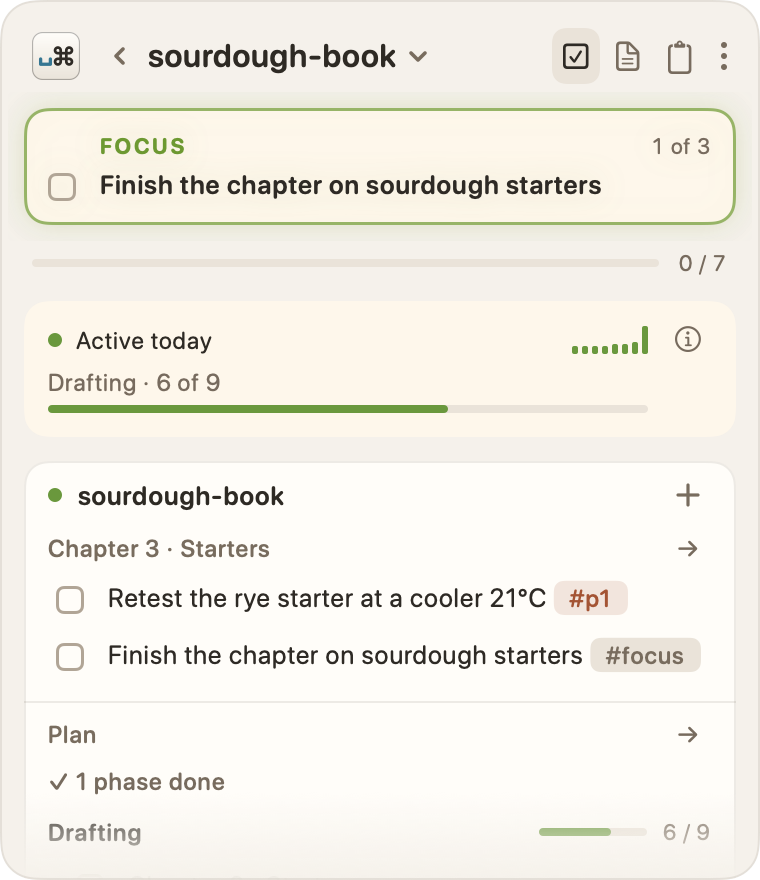
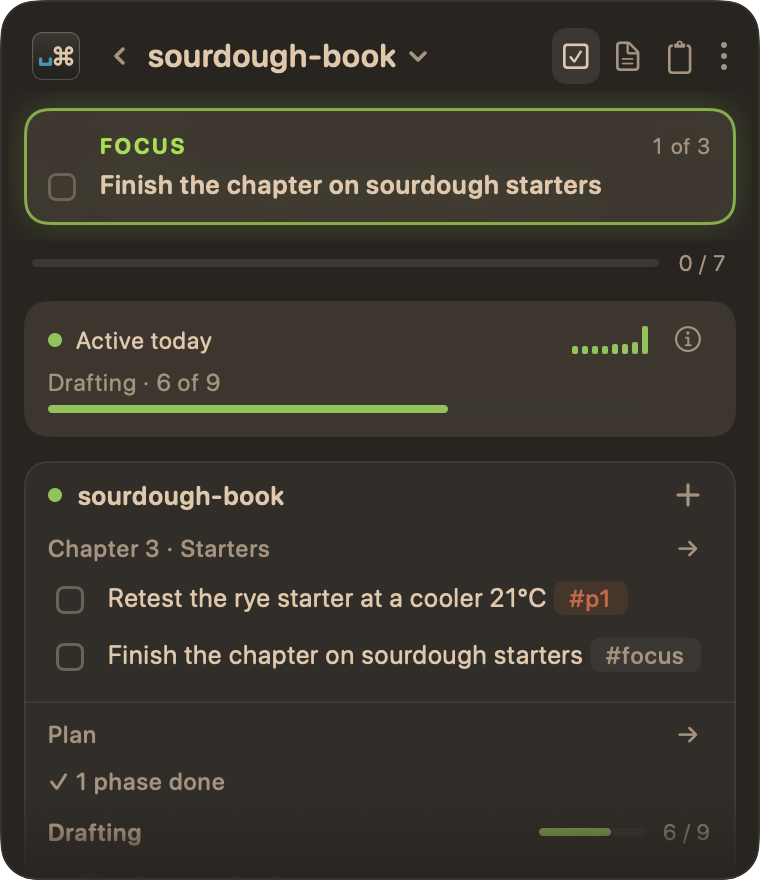
Like a row, the focus card is cut to two lines. Click anywhere on it, the "FOCUS" line included, to unfold its full text. Its box and buttons keep their own clicks.
Today shows one focus across all your projects: the one you set most recently, then yesterday's, then by priority and how busy its project is.
To open the focus at its line:
- Click the focus card. It unfolds, and shows where the item lives.
- Click that line.
Setting a focus
To focus a task in the panel:
- Click the task.
- Click Focus, or press F.
You can also type #focus on the task's line in any editor.
If the project already has a focus, the new one joins its queue, and the task asks where:
- Focus Next puts it right behind the focus on the card, which stays. Press Return for it.
- Focus Now puts it in front, and the old focus waits right behind it.
- Cancel, or Esc, leaves things as they were.
Either way, only the task's line changes: it gets #focus, and nothing loses it. ⌘Z undoes it.
When there's no focus
The card asks "What is your focus today?", at most once a day for each project.
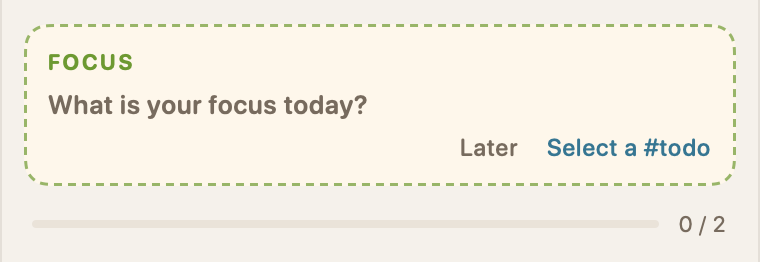
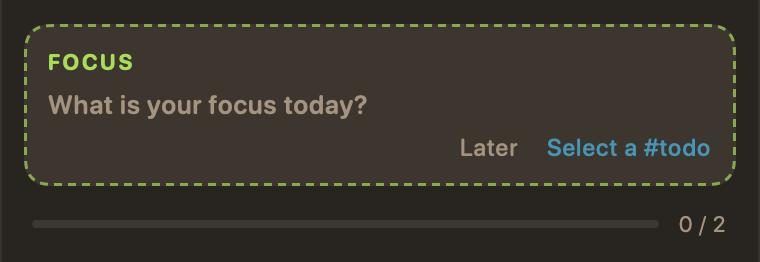
To pick a focus:
- Click Select a #todo.
- Click the task you want. Press Esc to cancel.
Later puts the question away until tomorrow.
When you finish the focus
Tick off the focus and the card offers what's next, without picking it for you. It suggests another #focus in the same project, then the next focus in another project, then the next open task in the same file.
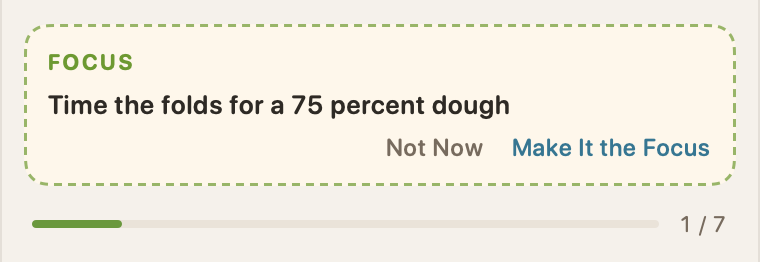
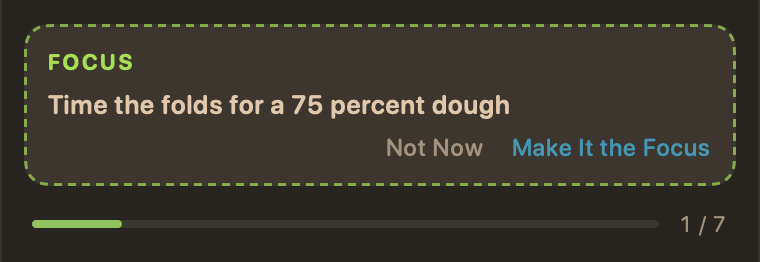
- Make It the Focus takes the suggestion and writes #focus to its line.
- Not Now leaves the project without a focus for the day.
The offer stays until you answer it.
The progress line
Under the focus card on the Tasks tab, a thin Moss bar and a count, such as "3 / 9", show how far you are through the tasks in view. The focus counts, and finished tasks count until they roll off. Ideas and snoozed items are left out. It hides when the scope has no tasks, or when Show is set to Ideas.
Finishing gently
Ticking a task never makes it vanish from under your pointer:
- A finished task stays in its list, struck through, through the next day, so a misclick is easy to see and undo. Settings › Tasks › Clear finished items shortens that (see Finished tasks).
- When a tick moves the item, as the focus card's item does into its list, or a
BUGS.mdreport into Fixed, it stays put for a moment, shown finished. Then it fades out and fades in at its new place, while the rows around it close the gap. - ⌘Z takes back the last tick, priority, focus, or Squash Done while the panel has the keyboard. There's no toast to dismiss: the change just reverses.
Squash Done, on a section's or group's right-click menu, or the ⋮, clears finished tasks from the list when you're ready. Your files aren't changed.
Snooze, without dates
#snooze sets an item aside without a date to come back to. It leaves every list, and ⌘F search still finds it, dimmed, so it's there when you go looking. #future and #snoozed read the same.
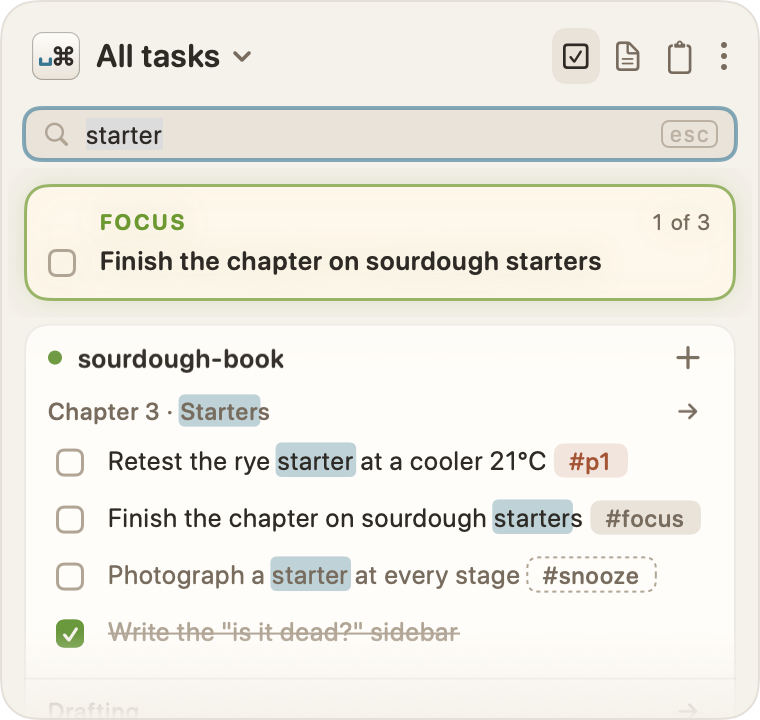
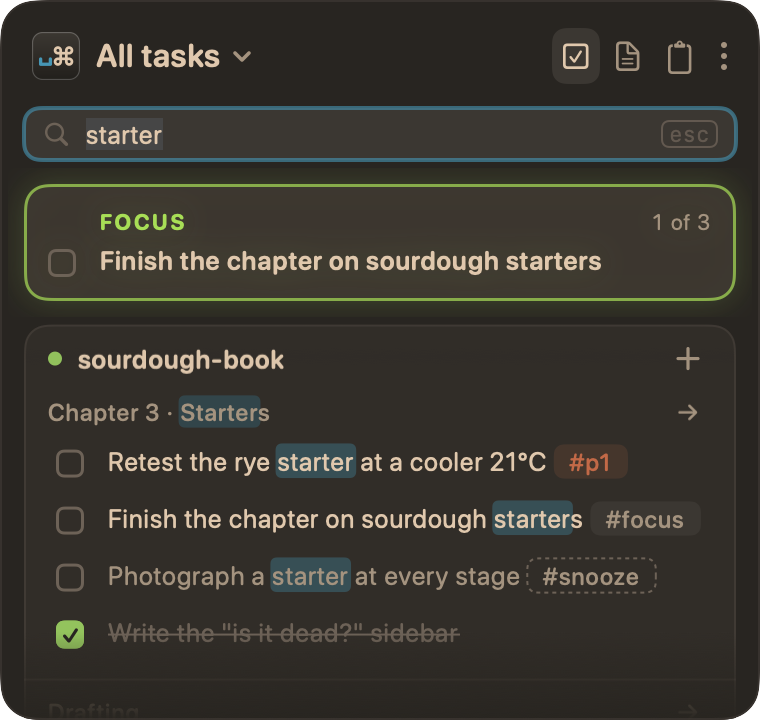
To snooze an item:
- Click it.
- Click Snooze, or press S.
To bring it back:
- Press ⌘F, and search for it.
- Click it.
- Click Unsnooze, or press S.
Unsnooze takes #snooze off the line, or #snoozed or #future. A task focused by its heading snoozes the same way, on its own line, and the heading's next task takes the focus (see Tasks). An item snoozed by its ### heading offers neither: take #snooze off the heading to bring back everything under it.
Quiet Mode
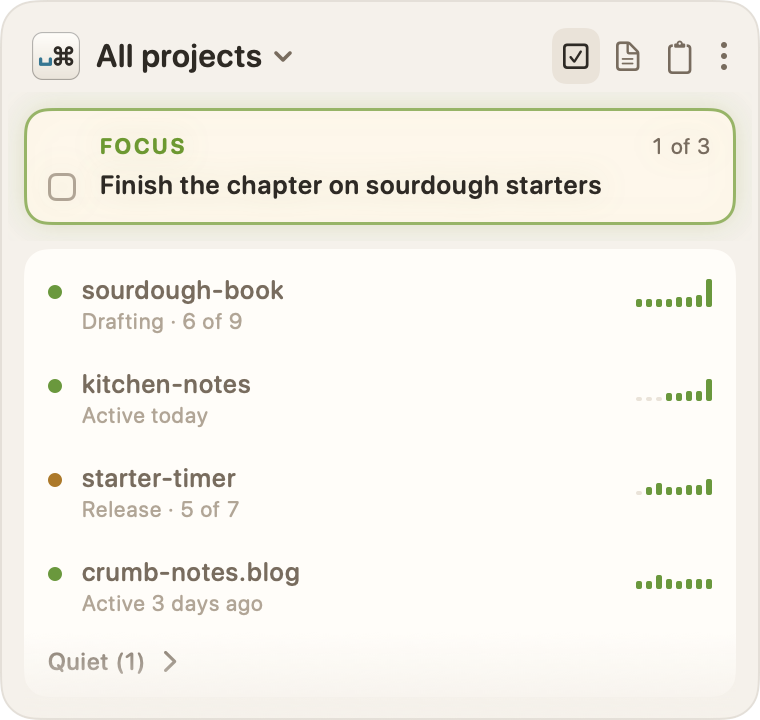
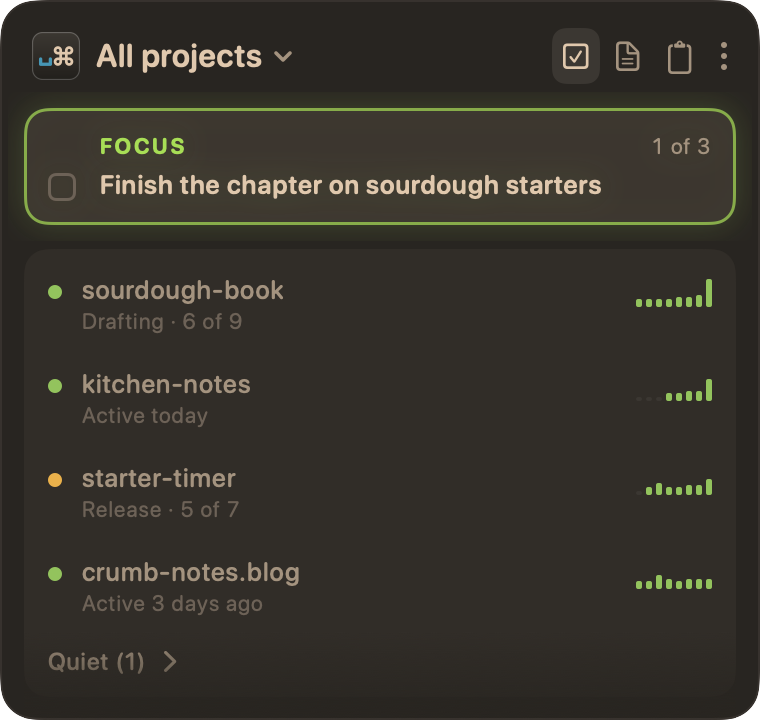
Quiet Mode tucks away the projects you haven't touched in a while, so the active ones stand out. It's off by default.
To turn it on or off, use any of these:
- The ⋮ at the end of the panel's header › Quiet Mode.
- The mark's right-click menu › Quiet Mode.
- Settings › General › Quiet Mode.
- A hotkey, set beside that switch (none until you set one).
A project is quiet when it's had no activity past the stale threshold, Settings › General › Stale after (30 days, by default). A project with an open #focus or #p0 never folds away, and neither does the scope you're in. A site that isn't a project goes by its newest post.
Quiet projects fold away rather than vanish:
| Where | Shows |
|---|---|
| The scope menus on Tasks, Posts, and Clipboard | Quiet (N) ▸ at the end of the project list, a submenu of the quiet ones |
| The All projects board | A Quiet (N) line at the end. Click it to list them in place. |
| All tasks | A Quiet (N) line at the end. Click it to show their items in place. |
| Today | Unchanged |
While Quiet Mode is on, the menu bar mark hides its #p0 dot. ⌘F search still finds items in quiet projects.
Show fewer animations
To calm the panel's motion:
- Open Settings › Appearance.
- Turn on Show fewer animations.
The panel then fades in place instead of sliding in from its edge, search fades in instead of sliding, and Posts jumps to a year instead of scrolling there. It's the same as macOS's Reduce Motion, for Space Command alone, so other apps keep their motion. With Reduce Motion on in System Settings, Space Command already moves less, whatever this setting says.
Even with every animation on, Space Command moves only to show a change you made or one it noticed: something opened, finished, or moved. Nothing moves for decoration.
Less on screen
| When | What stays out of the way |
|---|---|
| You search with ⌘F | Only the focus card and the results show. The other cards come back when you clear the search. |
| A row runs long | It's cut to two lines with "…". Click it for the rest. |
| A project's plan has finished phases | They fold into one line, such as "✓ 10 phases done". |
| A project has no news | Its name is dim on the projects board. A name in full has changed since you last looked. |
| You've read a project's news | Hide on its "Since" line puts it away (see What's new). |
The menu bar dot
A Terracotta dot beside the mark means there's an open #p0 somewhere. Besides the Dock badge below, it's the only signal Space Command shows outside its panel. There are no notifications. The dot goes when the last #p0 is done or snoozed, and hides while Quiet Mode is on. Hover over the mark to see how many there are, or which one when there's one.
Today lists them in a #p0 card, under the focus card and the progress line. Each row has its box to tick, and "project · file:line" under it opens the file at that line. The rows stay in their groups too. Quiet Mode leaves the card alone.
While Space Command is in the Dock, its icon there carries a badge counting the open #p0s. Quiet Mode hides it too.
To turn the dot and the badge off, clear Settings › Appearance › Show a dot in the menu bar for #p0 tasks. Today still lists them.
Suggestions wait for you
Space Command notices things, and asks before acting on them. Each suggestion has a way to put it off:
| It notices | It asks | To put it off |
|---|---|---|
| Nothing has a focus | "What is your focus today?" | Later, until tomorrow |
| You finished the focus | The next focus to take | Not Now, for the day |
| A folder looks like a project | "essays looks like a project" | Not Now |
| A tag matches two projects | Which project the tag means | Not Now |
| A doc may be out of date | A health flag, with its evidence | Mark Reviewed |
Nothing is written to your files until you choose. Settings › Advanced › Hidden brings back a suggestion you put away (see Bringing things back), and Settings › Advanced › Reset panel state brings back the daily questions and offers, keeping your folders and settings.